Read this: You will need a hardware sampler or a software sampler such as the popular Gigasampler. Once purchased, you could also put all the samples for the whole line (battery) on one channel or split them up (Snares on channel 1, tenors on channel 2 etc.). It really doesn't matter, However you like, and whatever makes the most sense for you. We use Macintosh at Go Fish Music so some of the items below MAY be slightly different if you are using a PC (button default names like NEW versus CREATE).
One important word before you begin. Your map will only control incoming notes or notes entered AFTER the map is made. If you make a notated score and then try to impose the map on preexisting notes, it won't work. Only new notes entered after the map is set will work.
This is how to make a percussion map:
- Make a stave.
- Click the stave with the Staff Tool (Treble Clef icon). You'll get two handles on the staff.
- Click the one closest to the notes.
- You'll get the Staff Attributes dialogue box.
- At the very bottom you'll see Notation Style. Make the popup menu say PERCUSSION if it doesn't already.
- You are now looking at the Percussion Map Selection dialogue box. Click the SELECT button next to it.
- You'll see drum maps for various generic devices (like General MIDI), we need to make a new map for the marching samples so choose CREATE.
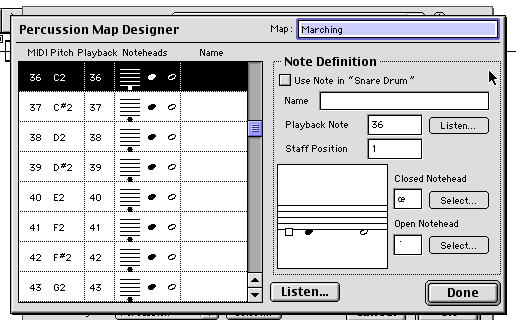
- You now looking at the Percussion Map Designer.
In the upper right of the box, give this new map a name like "Marching" or something obvious that related to this instrument and the channel itself. You could also make a unique map for each channel (snare, tenors,etc.) based on your decision to put all the snare samples on channel 1, tenors on channel two, etc. - On the far left of what you see is the MIDI note name. It probably starts at note 36 which is the low C2 of a 5 standard 5 octave keyboard. Let's pretend that you made a Gigasampler instrument with the low C key being the bottom bass drum (drum 5).
- In the Note Definition area give it a name like Bass#5.
- You probably don't want to change the default Playback note for the obvious reason that is would play a different pitch on playback than it would when you played the note into Finale.
- Use the handle in the music graphic box to move the noteheads up or down to where you want them to appear on the score. I like my low drum as an "F" in bass clef. This is staff position 1 in Finale talk. The bass "G" first line would be position 2 etc.
- For most drum notes the default open and closed noteheads (that is half notes and quarters/8ths/16th/etc.) are fine. However if you want to give an effect (like the snare rims) a unique font - choose the closed notehead SELECT button and choose an "X" font or whatever you would like for your effect.
- Now for the most obvious but dumbest thing. Do you see the USE NOTE check box at the top? You'll need to make sure this is on for each note that you make a map. If it isn't on, Finale will ignore the map!
- Don't forget to save your map. While your at it, make a template of Snare, Tenors,etc. with the maps assigned after you get everything running well.
5/24/2001
Paul Bissell
Go Fish Music
www.gofishmusic.com